

Introduction to Windows Upgrades
Windows upgrades are integral to maintaining a functional and efficient computing environment. These upgrades allow users to transition from one version of the Windows operating system to a newer version, thereby facilitating enhancements that are critical for both performance and security. As the digital landscape evolves, so too do the various threats and challenges associated with operating systems. Regular upgrades ensure that users can benefit from the latest innovations and improvements offered by Microsoft.
One of the primary advantages of Windows upgrades is improved performance. Each new iteration of Windows typically includes optimizations that can enhance speed, responsiveness, and overall system efficiency. Users often notice a significant reduction in load times and smoother multitasking capabilities following an upgrade. This ensures that both everyday tasks and more demanding applications run seamlessly.
Moreover, enhanced security features are paramount in today’s cyber threat landscape. Windows upgrades routinely introduce advanced security measures that protect against emerging threats, including malware and cyber-attacks. These updates often encompass patches that rectify vulnerabilities in previous versions, thus reinforcing the overall integrity of the system. By upgrading, users gain access to the latest security protocols and tools designed to safeguard their data and privacy.
Lastly, upgrading to the latest version of Windows grants users access to new features and functionalities that improve the overall user experience. From enhanced user interfaces to innovative applications, each upgrade brings fresh capabilities that can significantly improve productivity and creativity. Staying current with these upgrades not only fosters a more enjoyable computing experience but also ensures that users are utilizing the most efficient tools available.
Types of Windows Upgrades
When considering Windows upgrades, it is essential to understand the various types available, as each serves a distinct purpose and offers different benefits. The primary categories of Windows upgrades include major version upgrades, feature updates, security updates, and optional updates.
Major version upgrades represent significant advances in the Windows operating system, typically occurring every few years. These upgrades include substantial changes in performance, user interface enhancements, and the introduction of new features. For instance, the transition from Windows 10 to Windows 11 showcases a refreshed design and added functionalities aimed at improving the user experience. It is important for users to know that major upgrades may require enhanced hardware specifications, thus careful assessment of system compatibility is necessary before proceeding.
Feature updates, occurring regularly and more frequently than major upgrades, focus on improving existing features or adding new capabilities to the operating system. They aim to enhance productivity, performance, and security. Such updates are designed to be installed within the existing major version, ensuring that users benefit from the latest advancements without a full upgrade. Users should take note that these updates are crucial for maintaining optimal system performance and accessing improved functionalities.
Security updates, as the name implies, are crucial for protecting users against vulnerabilities. These updates are released frequently and address any identified security flaws or exploits within the existing system. Regular installation of security updates is necessary for safeguarding sensitive data and ensuring that a user’s system remains resilient to threats.
Finally, optional updates provide additional enhancements and fixes that may not be critical for everyday functionality but can improve system performance or include non-essential features. Users can choose to implement these updates based on their preferences and needs. Understanding these different types of Windows upgrades will enable users to make informed decisions regarding system maintenance and optimization.
Preparing for a Windows Upgrade
Upgrading your Windows operating system can significantly enhance your computer’s performance and security. However, to ensure a smooth transition, it is essential to undertake a few preparatory steps prior to initiating the upgrade process. The first action you should consider is backing up your important data. Data loss can occur during upgrades, so it is prudent to create a comprehensive backup of your files, including documents, photos, and any other vital information. Utilizing cloud-based storage or an external hard drive for this purpose is highly recommended.
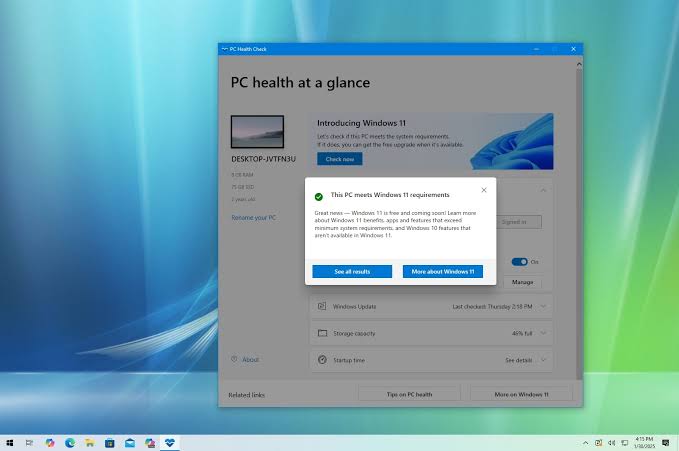
Next, you should check your hardware compatibility. Each new version of Windows may have different system requirements, including specific processors, RAM, or graphics capabilities. It is advisable to review these requirements on the official Microsoft website or the documentation accompanying the upgrade. This will help you ascertain whether your current device meets the necessary specifications or if any enhancements are needed before proceeding. Keep in mind that using a computer with insufficient resources may lead to performance issues after the upgrade.
Another crucial step in preparing for a Windows upgrade is to ensure that you have sufficient disk space available. New operating systems often require a significant amount of storage to facilitate installation and subsequent updates. To free up space, consider uninstalling unnecessary applications, deleting temporary files, or moving less-used files to external storage. Regularly maintaining free disk space can not only assist with the upgrade process but also optimize the overall performance of your system.
By following these steps—backing up important data, checking hardware compatibility, and ensuring sufficient disk space—you will be well on your way to a smooth and efficient Windows upgrade experience.
Performing the Upgrade: Step-by-Step Guide
Upgrading your Windows operating system can improve your computer’s functionality and security. The upgrade process may vary depending on the current version of Windows you are using, but here is a general step-by-step guide to follow, ensuring a smooth transition to the latest version.
Before initiating the upgrade, it is advisable to back up all important data on your system. This precaution will safeguard your data in case any issues arise during the upgrade process. You can use built-in tools such as File History or third-party software to create backup copies of your files.
Once your data is secure, the first step is to check for updates. Open the Settings app by clicking on the Start menu and selecting the gear icon. Navigate to Update & Security and click on Windows Update. Here, you should see options to download and install any available updates.
If you are looking to upgrade to a new version that is not yet available through Windows Update, you can visit the official Microsoft website to download the Windows Media Creation Tool. This tool allows you to create installation media that can be used on a USB flash drive or a DVD. Once downloaded, run the tool and select the option to upgrade this PC now.
Follow the prompts to agree to the license terms, and select the desired upgrade option. It’s important to choose whether to keep your files and apps or to perform a clean installation, which will erase everything. After making your selection, the installation will begin, and your PC may restart multiple times during this process.
In case you encounter any issues such as error messages or installation failures, consult the Microsoft support page or community forums for troubleshooting tips specific to your problem. Common issues might include insufficient disk space or incompatible hardware, and these can often be resolved with proper guidance or by adjusting settings.
By following these outlined steps carefully, you can successfully perform a Windows upgrade, ensuring your system runs smoothly and securely with the latest features.
Post-Upgrade Considerations
After successfully upgrading your Windows operating system, it is essential to ensure that your system operates smoothly and efficiently. One of the first steps you should take is to check for updates. Often, following a major upgrade, additional patches or updates may be released by Microsoft to enhance performance, fix bugs, or address security vulnerabilities. To do this, navigate to the Settings menu, select Update & Security, and click on Windows Update. From there, you can manually check for updates and install them as necessary.
In addition to installing updates, adjusting system settings to optimize performance post-upgrade is crucial. Depending on the version of Windows you’ve upgraded to, certain features may be enabled by default that could affect your system’s speed and efficiency. For example, you may want to review the privacy settings, adjust visual effects for performance, and ensure that your power settings are aligned with your usage requirements. These adjustments can help streamline your experience and improve the overall functionality of your device.
Furthermore, it is advisable to re-install or update any software and drivers that may have been impacted by the upgrade process. Programs that interact closely with the operating system can sometimes malfunction or behave unpredictably after an upgrade. Visit the official websites of your essential applications to download the latest versions that are compatible with your upgraded Windows setup. Additionally, for hardware devices like printers or graphics cards, ensure that you have the most current drivers installed for optimal performance.
Common Issues and Troubleshooting
Users often encounter various issues during or after a Windows upgrade. One of the most frequent problems reported is system crashes. These can occur for several reasons, including insufficient hardware specifications or conflicts between installed applications and the new operating system version. To address this, ensure that your system meets the recommended hardware requirements for the new Windows version. Additionally, running a complete system diagnostic can help identify underlying issues that may need resolution before proceeding with the upgrade.
Another common concern involves software incompatibilities. Certain programs that functioned well on previous Windows versions may not be compatible after an upgrade. Users are encouraged to check with the software vendors for updated versions or patches that are compatible with the new operating system. Often, uninstalling and reinstalling the problematic application can resolve the compatibility issue. Furthermore, utilizing Windows Compatibility Mode allows users to run older applications in a simulated environment, mimicking an earlier version of the operating system.
Network connectivity issues can also arise post-upgrade, particularly with older hardware drivers that may not support the new Windows system. It is advisable to visit the manufacturer’s website and download the latest drivers specifically designed for the upgraded Windows version. Regularly checking for Windows updates can also ensure that all drivers and system files are current, which might rectify connectivity faults.
If significant performance drops are observed, consider disabling startup programs, which may be consuming system resources unnecessarily. Additionally, running the Disk Cleanup tool and checking for malware can help improve overall system performance after the upgrade. By addressing these common issues and utilizing these troubleshooting strategies, users can enhance their Windows upgrade experience, ensuring a smoother transition to the new operating system.
Benefits of Keeping Windows Up-to-Date
Regularly upgrading Windows provides numerous advantages that are essential to maintaining an efficient and secure computing experience. One of the primary benefits is enhanced security. Each Windows update typically addresses vulnerabilities that could potentially be exploited by malicious actors. By keeping your system updated, you significantly reduce the risk of malware infections and cyberattacks, as the latest patches and security measures are in place to protect your system.
In addition to security improvements, upgrading Windows also leads to performance enhancements. New updates often include optimizations that can help your system run smoother and faster. These updates may improve resource management, enable better utilization of hardware components, and resolve any bugs or issues that might be slowing down your machine. Users can experience quicker loading times for applications and improved overall responsiveness.
Furthermore, staying current with Windows upgrades grants users access to new features that can enhance productivity and user experience. Updates often introduce innovative tools, applications, or integrations that can streamline workflows and meet evolving technology demands. This allows users to take full advantage of the capabilities of their devices, ensuring that they are equipped with the latest functionalities that modern software has to offer.
Overall, the benefits of keeping Windows up-to-date extends beyond mere aesthetics; it encompasses a commitment to security, performance, and overall user satisfaction. As technology evolves, so too do the vulnerabilities and demands on software systems, making it paramount for users to prioritize regular updates to their operating system.
User Experiences and Testimonials
The journey of upgrading to a new version of Windows can vary significantly among users, often influenced by their specific use cases, hardware compatibility, and personal expectations. Many users have shared experiences that highlight both the benefits and challenges encountered during the upgrade process.
For instance, a substantial number of users have reported improved system performance and enhanced security features following their Windows upgrades. One user mentioned, “Upgrading to Windows 11 significantly boosted my laptop’s speed, particularly when multitasking with heavy applications. The new interface is also more intuitive, making navigation easier.” Such testimonies underscore the positive outcomes many appreciate, showcasing the advancements in technology that accompany new releases.
Conversely, several users have encountered difficulties during their upgrade experiences. Compatibility issues with existing software or hardware are commonly cited concerns. A user shared, “I upgraded to Windows 10, but my printer drivers were not compatible immediately after the upgrade, which caused frustration until a fix was available.” This highlights the importance of checking hardware compatibility before initiating an upgrade, as well as ensuring that essential software is supported in the new environment.
Moreover, the availability of tutorials and community support is pivotal for many during their upgrade journeys. A frequent comment from users emphasizes, “The forums and guides made my transition smoother. I learned to resolve issues quickly by seeking advice from experienced users.” Community engagement often contributes to a more positive upgrade experience, allowing users to navigate obstacles effectively.
Overall, user experiences with Windows upgrades illustrate a tapestry of perspectives, ranging from satisfaction with enhanced performance to challenges that necessitate careful planning and knowledge of potential pitfalls. This diverse range of testimonials serves not only as encouragement to pursue upgrades but also as a valuable source of information for prospective upgraders.
Conclusion and Final Thoughts
In today’s fast-paced technological landscape, keeping your operating system up to date is not just a recommendation; it is a necessity. Windows upgrades play a crucial role in ensuring that users have the latest features, security improvements, and performance enhancements. The evolution of the Windows operating system underscores the importance of these upgrades, which cater to both casual users who enjoy new functionalities and professional users who strive for optimal performance and security in their work environments.
Throughout this discussion, we highlighted several key reasons for regular Windows upgrades. Enhancements in security are paramount, as cyber threats continue to evolve and proliferate. By ensuring you have the latest Windows version, you are protected by a more robust defense system against malware and other cyber risks. Additionally, each upgrade often comes with new features that aim to streamline workflows, improve user experience, and adapt to modern computing needs. This adaptability is crucial for maintaining productivity and efficiency in any setting.
Moreover, compatibility with new software and hardware can also hinge on having the latest version of Windows. Many applications and devices are designed to work seamlessly with current operating system iterations, providing a better overall experience for users. Neglecting to upgrade may result in loss of functionality or access to important tools essential for both personal and professional use.
Staying updated with Windows upgrades not only secures your device but also enriches the overall user experience. In conclusion, whether you are a casual user exploring new features or a professional requiring stable and secure performance, Windows upgrades should be a top priority. As technology continues to advance, embracing these updates will prepare you to face the future of computing confidently.