

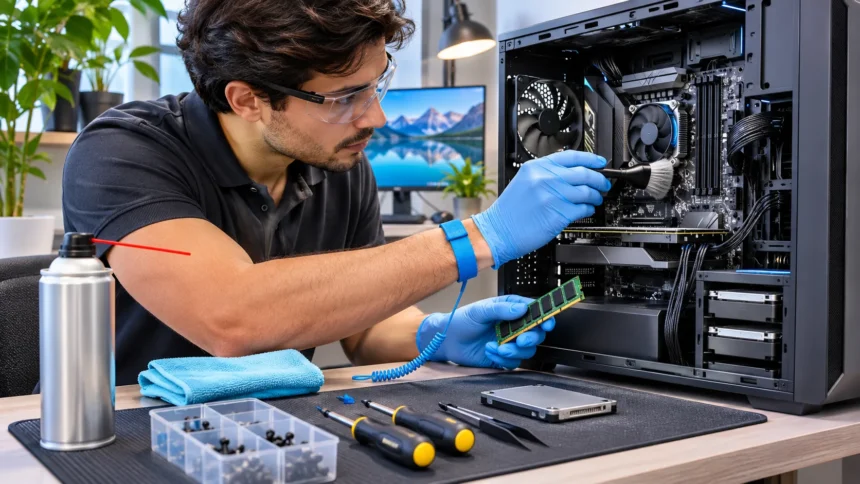
Computer hardware maintenance plays an important role in keeping computers fast, reliable, and safe to use. Many performance problems start with simple mistakes, such as ignoring dust, blocking ventilation, or handling internal components incorrectly. Regular maintenance helps prevent unexpected failures, expensive repairs, and unnecessary hardware replacements.
Whether you use a desktop computer, gaming PC, or laptop, understanding basic hardware care can make a difference. You do not need advanced technical skills to prevent many common issues. This guide explains practical maintenance methods, frequent mistakes, and simple ways to extend your computer’s lifespan.
What Is Computer Hardware Maintenance?
Computer hardware maintenance involves inspecting, cleaning, protecting, and monitoring the physical components of a computer. These components include the motherboard, processor, RAM, storage drives, cooling fans, and power supply. Proper care helps each part operate within its intended conditions while reducing the risk of overheating, unexpected shutdowns, and performance problems.
Unlike software maintenance, which focuses on programs and operating systems, hardware maintenance deals with physical equipment. It includes checking cable connections, removing dust, monitoring temperatures, and identifying worn components. These tasks help maintain system stability and allow users to recognize potential problems before they develop into serious hardware failures.
There are two main approaches to maintaining computer hardware: preventive and corrective maintenance. Preventive maintenance focuses on regular inspections and cleaning, while corrective maintenance addresses problems after they occur. Combining both approaches creates a more reliable computer maintenance routine and helps users avoid unnecessary repairs or replacements.
Why Regular Computer Hardware Maintenance Matters
Regular maintenance helps computers operate efficiently by keeping cooling systems, electrical connections, and physical components in good condition. Dust accumulation, excessive heat, and damaged cables can gradually reduce hardware reliability. Addressing these issues early helps prevent interruptions and allows users to continue working without frequent technical problems or unexpected system failures.
Hardware maintenance can also reduce long-term ownership costs. Replacing a damaged processor, motherboard, or power supply may cost significantly more than performing simple preventive checks. Although maintenance cannot prevent every component failure, it can reduce avoidable damage and help users get more useful years from their existing equipment.
Another important benefit is improved system safety and reliability. Loose electrical connections, blocked ventilation, and damaged power cables can create operational hazards. Regular inspections help identify these conditions, while proper cleaning and safe handling practices reduce the likelihood of accidental damage during everyday computer use.
Common Computer Hardware Maintenance Mistakes
One frequent mistake is waiting until a computer stops working before performing maintenance. Users may ignore unusual fan noises, rising temperatures, or occasional shutdowns because the system still operates. However, these warning signs can indicate developing hardware problems that become more difficult to resolve when maintenance is repeatedly delayed.
Another common error involves using inappropriate cleaning materials or handling components without proper precautions. Household cleaning sprays, excessive moisture, and ordinary vacuum cleaners can damage sensitive computer parts. Users should follow manufacturer recommendations and choose cleaning methods designed for electronic equipment rather than relying on general household maintenance techniques.
Ignoring compatibility and manufacturer instructions can also create unnecessary problems. Installing unsupported memory, connecting unsuitable power supplies, or opening sealed components may damage equipment or affect warranty coverage. Before performing hardware repairs or upgrades, users should review product documentation and understand the limitations of their specific computer model.
How to Clean Computer Hardware Safely
Safe computer cleaning begins with shutting down the system, disconnecting external power, and allowing components to cool. Users should follow the manufacturer’s guidance before opening a computer case or removing accessible panels. Cleaning should take place in a dry, well-lit area where small screws and removable components can be organized.
Exterior surfaces can usually be cleaned using a soft microfiber cloth. For screens and keyboards, choose manufacturer-approved cleaning products and apply any permitted liquid to the cloth rather than directly onto the device. Avoid excessive moisture because liquid entering ports, switches, or internal components may cause corrosion or electrical damage.
Internal cleaning requires additional care because computer components are sensitive to static electricity and physical pressure. Appropriate electronics-cleaning tools can remove dust from accessible areas when used according to manufacturer instructions. Never open a power supply, and avoid touching exposed circuitry unless you have the necessary knowledge and suitable electrostatic protection.
Preventing Dust Buildup Inside Your Computer
Dust is one of the most common causes of reduced cooling efficiency in desktop computers and laptops. It collects around ventilation openings, fan blades, and heat sinks, restricting airflow and making cooling systems work harder. Over time, excessive buildup may contribute to higher operating temperatures, louder fans, and unexpected performance reductions.
Keeping the computer in a clean, well-ventilated location can reduce dust accumulation. Avoid placing desktop towers directly on dusty carpets or positioning laptops on soft bedding that blocks cooling openings. Computer cases with removable dust filters can also simplify routine maintenance, although these filters must be cleaned periodically to remain effective.
The appropriate cleaning frequency depends on the surrounding environment and computer usage. Systems operating near pets, carpets, or construction dust may need more frequent attention than computers in cleaner rooms. Checking accessible vents and filters regularly helps determine when cleaning is necessary without opening the computer unnecessarily.
Avoiding Overheating and Cooling System Problems
Overheating occurs when computer components generate more heat than the cooling system can remove effectively. Processors, graphics cards, and other internal components produce heat during operation, especially under demanding workloads. When temperatures become excessive, systems may reduce performance, increase fan speed, or shut down automatically to protect sensitive hardware.
Proper airflow is essential for preventing thermal problems. Keep ventilation openings clear, maintain adequate space around desktop cases, and use laptops on stable surfaces that support cooling. Users should also avoid installing computers inside tightly enclosed cabinets unless those spaces provide sufficient ventilation for the equipment.
Monitoring hardware temperatures can help identify cooling problems before they become severe. Reliable system monitoring utilities can display processor and graphics card temperatures during normal activities. Temperature readings should be compared with manufacturer specifications because acceptable operating ranges vary between components, workloads, and computer models.
Maintaining RAM, Motherboards, and Internal Components
Random access memory, commonly called RAM, temporarily stores information needed by active programs. Although RAM generally requires little direct maintenance, poor installation or damaged contacts can cause crashes and startup problems. Users should avoid unnecessary handling and ensure replacement memory modules meet the computer manufacturer’s compatibility requirements.
The motherboard connects important hardware components and distributes communication signals throughout the system. Physical damage, moisture exposure, and improper connections may interfere with these functions. Keeping the computer clean, avoiding excessive pressure on connectors, and using compatible components can help protect the motherboard from preventable maintenance-related damage.
Internal connectors and expansion cards should only be inspected when necessary and safe to access. Before handling sensitive parts, users should disconnect power and follow appropriate electrostatic discharge precautions. If a component appears damaged, corroded, or unusually hot, professional inspection is often safer than attempting an unfamiliar repair.
Taking Care of Hard Drives and SSD Storage
Storage drives hold operating systems, applications, documents, and other important information. Traditional hard disk drives contain moving mechanical parts, while solid-state drives use electronic memory chips. Both technologies require proper care, but their maintenance needs differ because they store and access information through different physical mechanisms.
Hard drives are particularly sensitive to physical shocks while operating. Moving a computer roughly during disk activity can increase the risk of mechanical damage, especially in older devices. Solid-state drives are more resistant to movement, but they can still fail because of electrical problems, manufacturing defects, or normal memory wear.
Storage maintenance should include checking drive health information and maintaining reliable backups. Monitoring tools may identify warning signs, such as abnormal drive errors or deteriorating health indicators. However, no diagnostic method can predict every failure, so important files should be backed up regularly regardless of the storage device’s reported condition.
Protecting Power Supplies and Electrical Connections
A computer’s power supply converts incoming electrical power into the voltages needed by internal components. An unsuitable or failing power supply can cause shutdowns, unstable operation, and potential hardware damage. Choosing a quality power supply that meets system requirements is an important part of maintaining computer reliability.
Users should inspect accessible power cords and external connections for visible damage. Frayed insulation, loose plugs, and overheating connectors should never be ignored because they may create electrical hazards. Damaged equipment should be disconnected safely and replaced or examined by a qualified technician rather than repaired through temporary household solutions.
Power protection is another important consideration for computer hardware maintenance. Suitable surge protection can reduce damage from certain voltage spikes, while an uninterruptible power supply may provide temporary electricity during outages. Users should select appropriately rated equipment and remember that no protective device guarantees complete safety against every electrical event.
Maintaining Laptop Hardware Properly
Laptop maintenance requires special attention because compact designs place components close together. Cooling systems have limited space, and many models contain batteries, storage devices, and memory modules that are difficult to access. Understanding these design limitations helps users avoid damage while performing basic cleaning or attempting hardware upgrades.
Battery care is an important part of maintaining portable computers. Excessive heat, physical damage, and unsuitable charging equipment can shorten battery life or create safety problems. Using manufacturer-approved chargers, keeping ventilation clear, and following recommended charging settings can help maintain dependable battery performance over time.
Laptop screens, hinges, keyboards, and charging ports also require careful handling. Avoid carrying a laptop by its display, forcing connectors into ports, or placing heavy objects on the closed lid. Regular exterior cleaning and careful transportation can prevent physical damage that may otherwise require expensive component replacements.
Preventing Static Electricity and Handling Errors
Static electricity can damage sensitive electronic components even when users do not notice a discharge. Computer memory, processors, and expansion cards contain delicate circuits that may be affected by improper handling. Following electrostatic discharge precautions is especially important when installing hardware, replacing components, or inspecting an open computer case.
A suitable antistatic work area and properly used electrostatic protection equipment can help reduce handling risks. Users should avoid unnecessary contact with electrical contacts and exposed circuitry. Components should be handled by their edges whenever possible and stored in appropriate protective packaging until they are ready for installation.
Physical handling mistakes can be just as damaging as electrical discharge. Forcing incompatible connectors, overtightening screws, or bending delicate components may cause permanent damage. Reading installation instructions carefully and using the correct tools can prevent these problems while making routine hardware maintenance safer and more predictable.
Creating a Preventive Hardware Maintenance Schedule
A maintenance schedule makes it easier to identify problems before they interrupt daily activities. Instead of waiting for hardware failure, users can inspect accessible ventilation openings, listen for unusual noises, and check for damaged cables. These simple observations provide useful information about the computer’s condition without requiring complicated technical procedures.
Monthly maintenance may include cleaning external surfaces, checking dust filters, reviewing storage health, and monitoring operating temperatures. Computers used heavily for gaming, professional editing, or demanding workloads may require closer observation. Maintenance frequency should reflect actual operating conditions rather than following the same schedule for every device.
Periodic professional servicing can be useful when internal cleaning, component replacement, or advanced diagnostics are necessary. Technicians can examine cooling systems, electrical connections, and hardware faults that ordinary users may not be equipped to evaluate. Maintaining basic service records also helps identify recurring problems and supports better decisions about future repairs.
Recognizing Warning Signs of Hardware Failure
Unusual noises are among the clearest warning signs of possible hardware trouble. Repeated clicking from a mechanical hard drive, grinding fan sounds, or persistent rattling should be investigated promptly. These symptoms can indicate mechanical wear, loose components, or cooling problems that may become more serious without attention.
Frequent crashes, unexpected shutdowns, and unexplained performance drops can also suggest hardware problems. However, these symptoms may result from software conflicts, operating system errors, or incorrect settings. Proper troubleshooting should consider both hardware and software causes before assuming that an expensive component needs replacement.
Visual warning signs should never be overlooked. Damaged charging ports, swollen batteries, discolored connectors, or unusual burning odors require immediate attention and professional assessment. If equipment shows signs of electrical damage, stop using it and disconnect power when safe rather than continuing operation or attempting uncertain repairs.
When to Repair, Upgrade, or Replace Computer Hardware
Not every hardware problem requires replacing an entire computer. A damaged cooling fan, failing storage drive, or insufficient memory may sometimes be addressed through individual component repairs or upgrades. The best option depends on the computer’s age, hardware compatibility, repair costs, and the performance required for everyday tasks.
Upgrading existing components can be worthwhile when the rest of the computer remains reliable. Adding compatible RAM or moving from a traditional hard drive to an SSD can improve responsiveness in suitable systems. However, upgrades should be evaluated carefully because older processors, limited motherboard support, and proprietary designs may restrict potential improvements.
Replacement becomes more reasonable when repair costs approach the price of a suitable new computer. Repeated component failures, unavailable replacement parts, and unsupported operating systems can also influence the decision. Comparing long-term reliability, total ownership costs, and actual computing needs helps users avoid spending money on ineffective repairs.
Conclusion
Computer hardware maintenance is essential for protecting performance, reliability, and equipment lifespan. Simple practices such as cleaning ventilation openings, monitoring temperatures, and checking electrical connections can prevent many avoidable problems. Understanding common maintenance mistakes also helps users protect sensitive components from accidental damage.
A successful maintenance routine does not require constant repairs or complicated technical procedures. Most users can improve hardware care through regular inspections, safe cleaning practices, proper ventilation, and careful handling. More demanding tasks should be left to qualified technicians when the risks or required skills exceed personal experience.
The best approach is to treat computer maintenance as an ongoing responsibility rather than an emergency response. Paying attention to warning signs and following manufacturer recommendations can reduce downtime and unnecessary expenses. With consistent preventive care, computers are more likely to remain dependable throughout their useful service life.
Frequently Asked Questions
How often should computer hardware maintenance be performed?
Basic hardware checks can be performed monthly, while deeper cleaning depends on dust levels, workload, and manufacturer recommendations. Computers operating in dusty environments may need more frequent inspections than systems used in cleaner spaces.
What is the most common computer hardware maintenance mistake?
Ignoring dust accumulation and blocked ventilation is a common mistake. Poor airflow can increase operating temperatures, reduce performance, and place additional strain on cooling components, making regular inspection an important preventive measure.
Can computer hardware maintenance improve performance?
Yes, maintenance can improve performance when overheating, dust buildup, or faulty connections are causing slowdowns. However, cleaning alone will not make properly functioning hardware faster than its designed capabilities.
Is it safe to clean computer hardware at home?
Basic exterior cleaning is generally safe when manufacturer instructions are followed. Internal cleaning requires additional precautions against static electricity, moisture, and electrical hazards, so unfamiliar or complicated tasks are better handled by professionals.
What tools are needed for basic computer hardware maintenance?
Useful tools include microfiber cloths, manufacturer-approved cleaning materials, suitable screwdrivers, and appropriate electrostatic protection equipment. The exact tools depend on the device and whether maintenance involves exterior cleaning or internal component access.