

Few messages are as confusing as “The disk is write-protected” appearing out of nowhere. Your SD card worked yesterday; today your camera or computer refuses to write to it. The first thought is usually that something broke. The second thought – worry that your photos are gone – is understandable but usually wrong.
A write-protected SD card is very often a card that still holds all of its data, simply refusing to accept new files. That means your files are safe – they just need the right unlock, or the right recovery tool if the lock itself will not come off.
What Does Write-Protected Mean?
Write protection is a state that blocks new data from being written to a card. It comes in two forms:
- Physical lock: most full-size SD cards have a tiny slider on the side. When it is pushed down, the card becomes read-only – no writes, but also no data loss.
- Logical read-only attribute: the card’s file system or registry marks the device as read-only, which can happen after errors, virus infections, or failed operations.
The important part: neither form deletes your files. Write protection is a wall around your data, not a demolition crew. In fact, a write-protected card is often safer than a working one – because no new writes can accidentally overwrite the data you care about. The lock is an inconvenience, not a disaster.
Method 1 – Check the Physical Lock Switch
This is the fastest fix, and it is embarrassing how often it is the answer. Remove the card and look at the left edge. If the small slider is down (toward the lock icon), slide it up to the unlocked position, reinsert the card, and try again.
Some microSD cards use an adapter with the same switch – check the adapter if the card itself has no slider.
It is worth checking this first for a practical reason: a card in the locked position is one of the few “failures” that is completely harmless. No data has been lost, no software is needed, and the fix takes three seconds. The slider exists because some devices (like certain readers or old cameras) could trigger unwanted writes – so the lock is a feature that sometimes gets left on by accident. Slide it, test it, move on.
Method 2 – Remove Write Protection with Diskpart (Windows) or Disk Utility (Mac)
If there is no physical switch, or sliding it does not help, the card may carry a logical read-only attribute.
- On Windows: open Command Prompt as administrator and run the following commands one by one:
- diskpart
- list disk – (find your card’s disk number)
- select disk X (replace X with your card’s number)
- attributes disk clear readonly
This clears the read-only attribute without touching your data.
On Mac: open Disk Utility, select the card, and run First Aid. If the card is mounted read-only, unmount it and remount; some Macs also need the read-only flag cleared via diskutil.
If these steps clear the lock, your card works again – no recovery needed.
When the Attribute Won’t Clear
If disk part or First Aid reports the command completed but the card is still write-protected, do not fight it. A stubborn read-only attribute usually means the card’s controller has locked itself – a protective response to detected errors, or a sign of failing flash memory. The lock is not necessarily fatal, but it is a strong hint that the card’s health is declining. Recover your data while you still can, then replace the card rather than forcing it back into service.
Method 3 – Recover Files from the Locked Card with Recoverit
If the card stays locked no matter what – which can happen when the file system is damaged underneath – your files are still accessible for recovery. Read-only recovery software can read the card even when writes are blocked, because reading is exactly what the protection allows.
Wondershare Recoverit works with 2,000+ storage devices, including locked and unallocated cards. Here is how to recover your files:
- Launch Recoverit and click SD Card Recovery. Connect the locked card through a card reader.
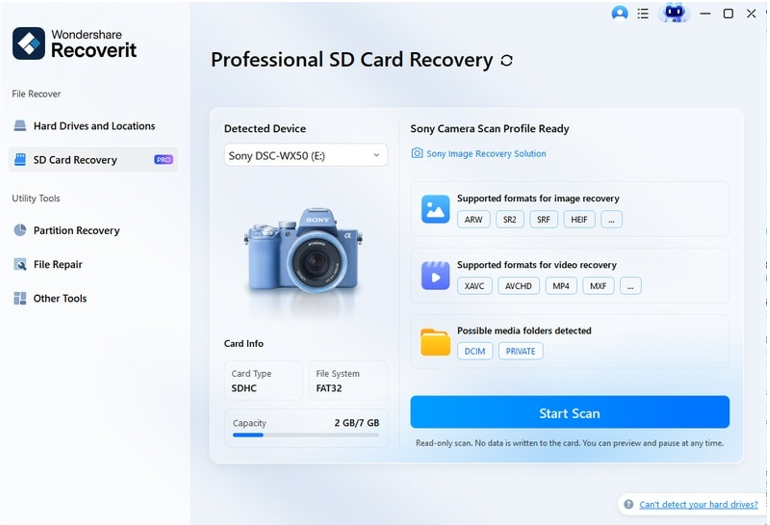
- Select the card and click Scan. The AI-accelerated scan reads the card’s raw data, working around the lock and any file-system damage.
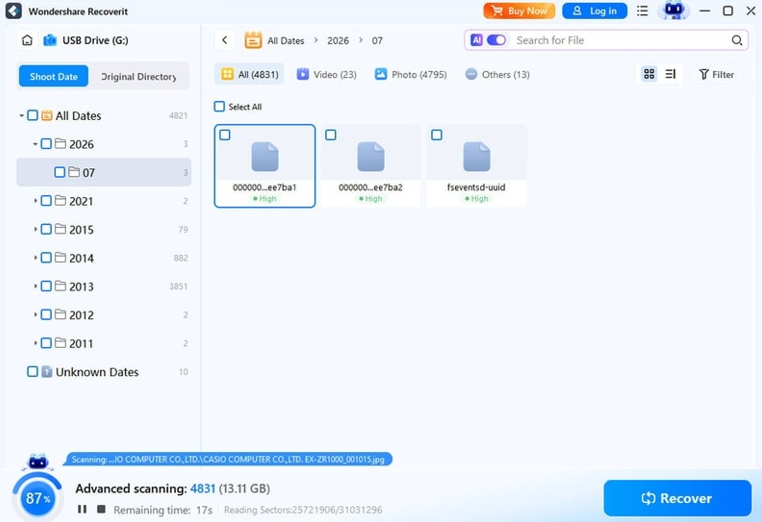
- Preview your photos and videos, then click Recover and save to a different, healthy drive.
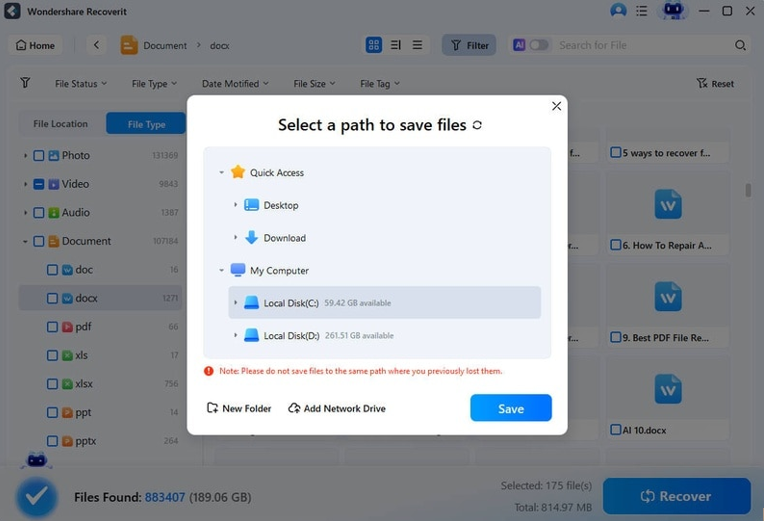
Once your data is safe, you can format the card (if it is truly stuck) without losing anything. For Windows users, the Windows data recovery tool handles locked and failing storage the same way the SD card module does – scan first, preview, then save to a healthy drive.
If the Card Is Also Corrupted
A card that is both write-protected and corrupted is a sign of deeper file-system damage. Recover first, then check whether individual files need repair – Recoverit for Windows includes photo and video repair modules, so damaged files can often be fixed after recovery. After that, reformat the card and test it; if it fails again, replace it.
It is worth knowing that the two problems often share a cause – an interrupted write or a failing card can corrupt the file system and trip the read-only flag at the same time. That is why the recovery-first sequence works so well here: the lock may stay on, but your data is still readable, and reading is the one thing the protection never blocks.
Conclusion
A write-protected SD card is rarely a data disaster – it is usually a small switch, a logical flag, or a card that needs to be read by a tool that respects its lock. Check the physical slider, clear the read-only attribute, and if the lock persists, recover your files read-only with Wondershare Recoverit. Your data is behind a wall, not gone – and walls can be worked around. Unlock it, or read around it; either way, your files are waiting on the other side. And if the card keeps locking itself, treat that as the warning it is: copy everything off and retire the card before it fails for good.