
External hard drives hold some of our most important files – photo libraries, backups, and years of memories. So when photos go missing from an external drive, it hits differently. Maybe you deleted a folder by accident, maybe the drive failed mid-transfer, or maybe a sync error emptied a directory.
Whatever the cause, the recovery principles are the same – and they work well for external drives. Here is how to recover deleted photos from an external hard drive.
Why External Drive Photos Are Usually Recoverable
Like any storage device, an external hard drive does not erase deleted files immediately. When you delete a photo, the drive’s file system marks the space as available, but the photo’s data stays until something new overwrites it. As long as the drive has not been heavily rewritten since the deletion, the photos are recoverable.
This applies to all external storage types:
- HDDs (hard disk drives) – traditional spinning drives with large capacities.
- SSDs (solid-state drives) – faster, but with different data handling.
- USB flash drives and portable SSDs – common for photo transport.
The one caution: SSDs use wear-leveling that can move data around, so acting quickly matters more. The moment you notice missing photos, stop using the drive.
Step-by-Step: Recover Photos from an External Drive
Step 1 – Connect the Drive and Stop Writing to It
Connect the external drive to your computer, but do not copy anything to it. If the drive is your backup source, do not run backups onto it. Every new write reduces the chance of recovering the deleted photos.
Step 2 – Scan the Drive with Recoverit
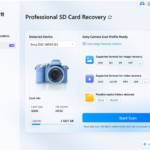
Wondershare Recoverit recovers photos from HDDs, SSDs, and USB external storage. The workflow is the same across devices:
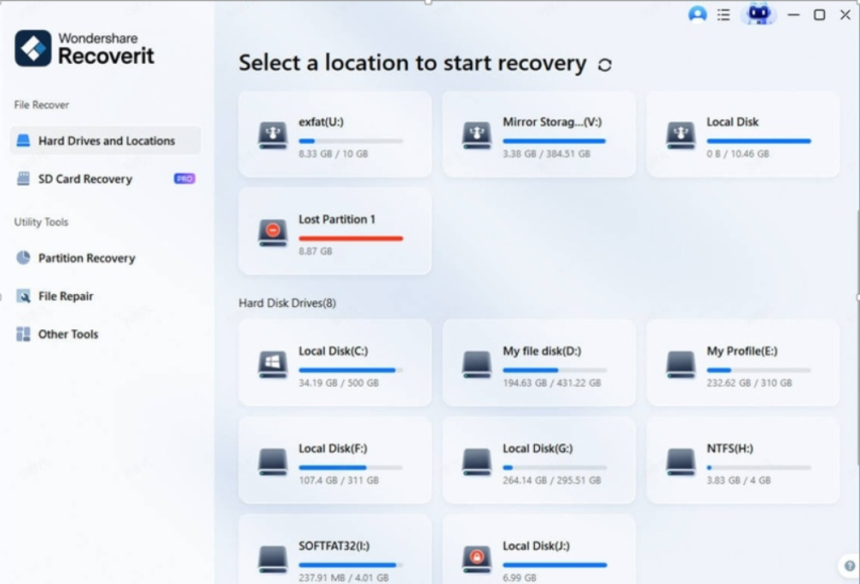
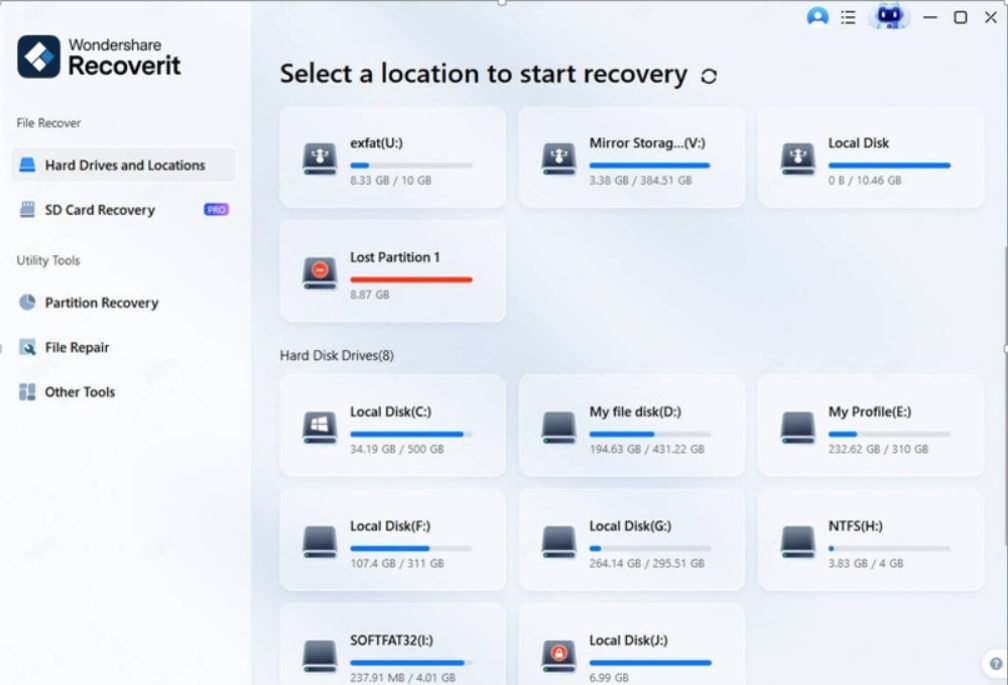
- Launch Recoverit and select the external drive from the device list.
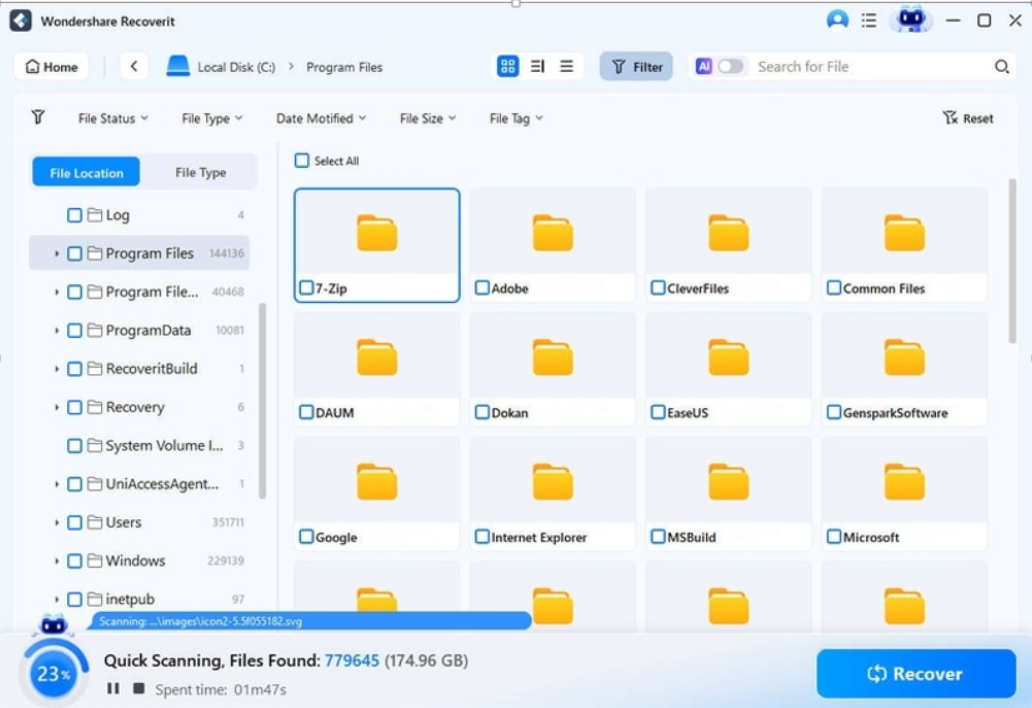
- Click Scan. The AI-accelerated scan looks for deleted photo data, including files no longer listed in the file system.
- Watch results appear in real time – you can stop the scan early once your photos show up.
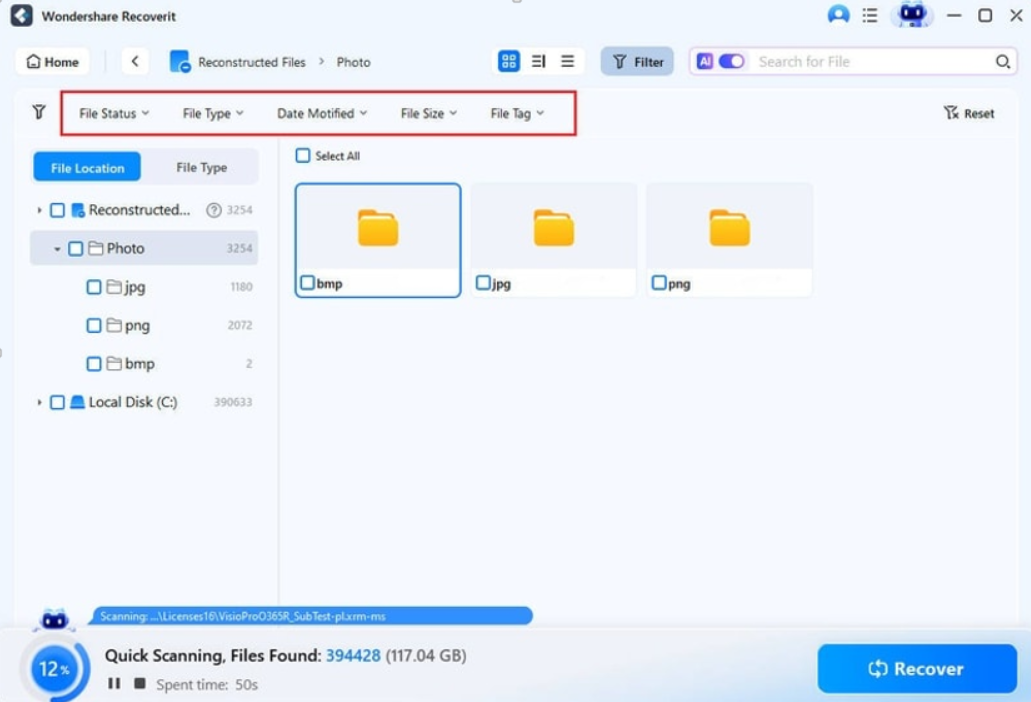
Step 3 – Filter and Preview
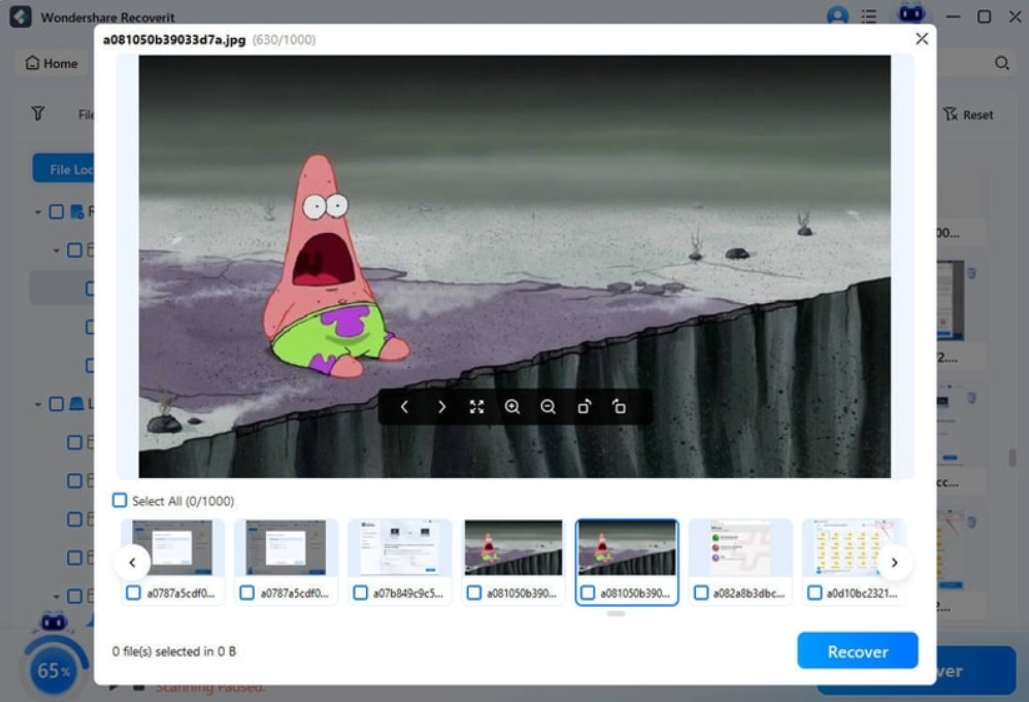
When the scan finishes, use the filters to show only photos – by File Type, and by Time if you know when the photos were deleted. Preview the results; Recoverit’s AI-powered preview renders thumbnails accurately, including RAW files, so you can confirm what you are recovering.
Step 4 – Recover to a Different Drive
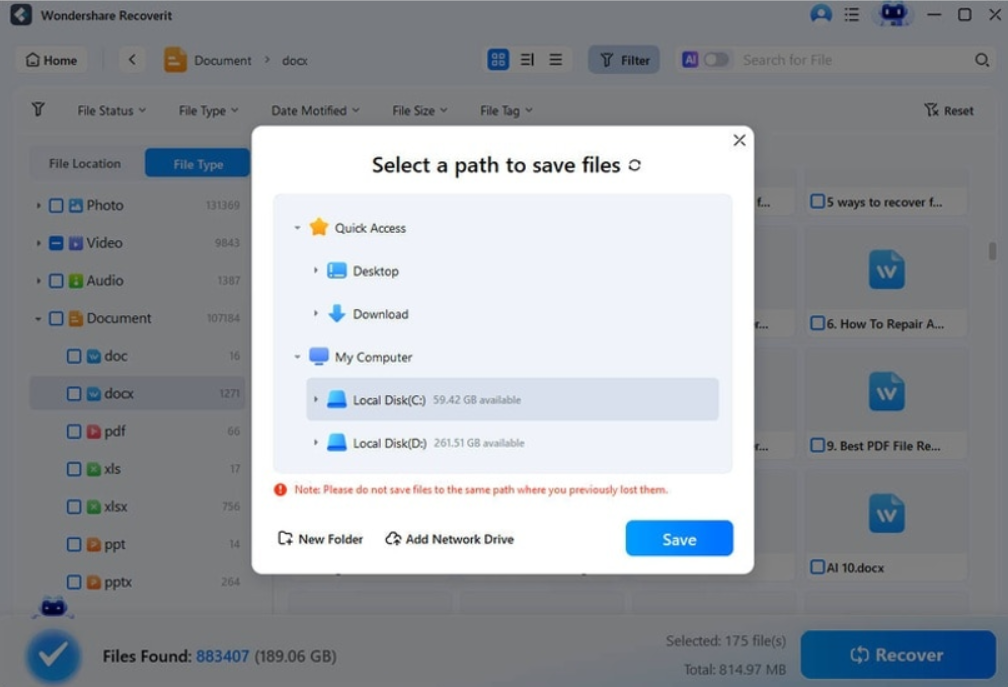
Select the photos and click Recover. Save them to a different drive than the one being scanned – never back onto the same external drive, which could overwrite other deleted files still waiting to be recovered.
Why External Drives Are Great Recovery Candidates
External drives recover well for a few reasons:
- They are usually not constantly rewritten. Unlike a system drive with daily writes, an external photo drive may sit untouched for days after deletion – preserving the deleted data.
- Their file systems are standard. NTFS, exFAT, and HFS+ are all well understood by recovery software.
- They hold large files. Photos and videos are large and leave clear signatures for deep scans to find.
The Windows version and Mac version of Recoverit both handle external drives, so the workflow works on either platform.
What If the Drive Is Not Recognized?
If the external drive does not appear in your computer at all:
- Try another USB port or cable. Power and connection issues are common.
- Try another computer. A drive that fails on one system may read on another.
- Check Disk Management (Windows) or Disk Utility (Mac) to see if the drive is detected at the hardware level.
- Scan it anyway. Recoverit can often detect and scan drives that the operating system does not fully mount.
Handling Physically Failing Drives
If the drive is clicking, making strange noises, or repeatedly dropping connection, stop trying to read it yourself – every attempt risks further damage. Contact a professional recovery service with clean-room equipment. For a photo library worth years of memories, the cost is often worth it.
Preventing External Drive Photo Loss
- Keep two backups. A photo library should never exist in only one place.
- Eject before unplugging. Always use safe removal.
- Don’t use a photo drive as scratch space. Frequent reads and writes age the drive and risk corruption.
- Check drive health. Run periodic health checks; a failing drive warns you before it fails.
- Replace old drives. A drive that has served years should be retired to backup-only duty.
Conclusion
Deleted photos on an external hard drive are usually recoverable – the data stays until overwritten, and external drives are often ideal recovery candidates because they are not constantly rewritten. Connect the drive, stop writing to it, and scan with a purpose-built tool. With Wondershare Recoverit, you can recover photos from an external hard drive in four steps: connect, scan, preview, and recover. The photos you thought were gone are still on that drive – and they are waiting for you to bring them back.